

Contents
If you like revising on the bus, between lessons, or away from your desk, you might be wondering whether Save My Exams has a mobile app.
The short answer is no. Save My Exams does not currently have a dedicated mobile app. However, the website works well on smartphones and tablets, making it easy to access revision notes, flashcards, practice questions, and other study resources wherever you are.
Whether you're fitting in a quick revision session before school or reviewing flashcards on the way home, you can access Save My Exams from your mobile device without downloading anything. In this guide, you'll learn the best ways to use Save My Exams on your phone or tablet and how to make mobile revision work for you.
Key Takeaways
Save My Exams does not currently have a dedicated mobile app
You can access all of your revision resources through your mobile browser
Creating a home screen shortcut gives you quick, app-like access
Premium users can download revision notes, past papers, and mark schemes for offline revision
Does Save My Exams Have A Mobile App?
No, Save My Exams does not currently offer a dedicated mobile app.
However, you can access the full website through your smartphone or tablet. The site is designed to work across different screen sizes.
Without installing anything, you can:
Access other study resources and tips, including articles from the Learning Hub
For many students, using the website on a mobile device provides a very similar experience to using an app.
How To Access Save My Exams On Your Mobile Device
There are several ways to use Save My Exams on your phone or tablet.
Using Your Mobile Browser
The easiest option is to visit the Save My Exams website through your preferred mobile browser.
Whether you're using an iPhone, Android phone, or tablet, the site automatically adjusts to fit your screen.
Creating A Home Screen Shortcut
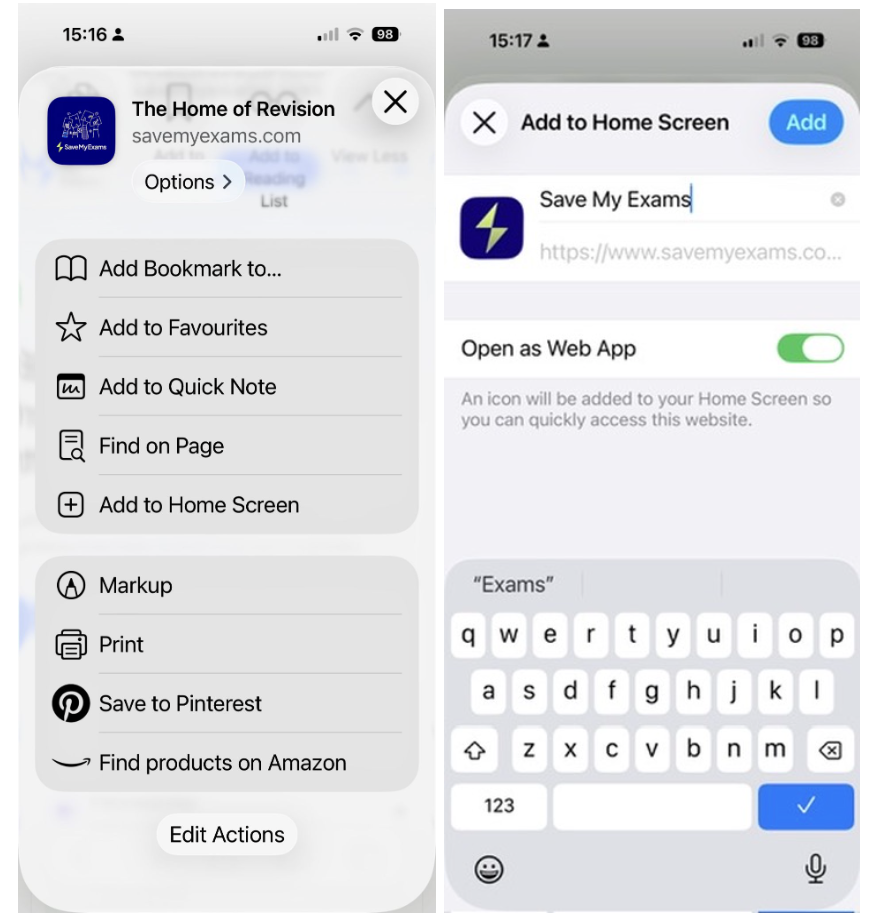
If you use Save My Exams regularly, creating a home screen shortcut can make it much quicker to access the website.
On iPhone:
Open Save My Exams in Safari.
Tap the Share button.
Select Add to Home Screen.
Confirm the name and tap Add.
On Android:
Open Save My Exams in Chrome.
Tap the three-dot menu.
Select Add to Home Screen.
Follow the on-screen instructions.
This places an icon on your home screen so you can open Save My Exams with a single tap, just like an app.
Downloading Resources For Offline Use
Premium Save My Exams users can download selected resources for offline revision.
This includes revision notes in PDF format, along with past papers and mark schemes where available.
Downloading resources before travelling or studying somewhere with limited internet access can be a useful way to keep revising wherever you are.
If you're considering a Premium subscription, you may also find it helpful to read our guide that answers your questions about whether Save My Exams is worth it.
Tips For Revising On Your Mobile Device
Your phone can be a surprisingly useful revision tool when used in the right way.
When Mobile Revision Works Well
Mobile revision works best for shorter study sessions and quick review.
For example, you might use your phone to:
Review flashcards while travelling
Read revision notes between lessons
Check key definitions, formulae, or quotations
Revise a topic while waiting for an appointment
Fit in a quick 10-minute revision session during a break
Mobile revision is particularly effective when you're revisiting information you've already learned. Short, regular review sessions can help strengthen your memory and improve recall over time.
Combining Mobile And Desktop Study
A good approach is to use your phone for review and active recall, then switch to a laptop or desktop computer for longer study sessions.
For example, you might use your phone to scan flashcards or read revision notes. Then you can move to a larger screen when you're:
Writing answers to longer exam questions
Making detailed notes or creating mind maps
Completing past papers or mock exams
This allows you to fit revision into small pockets of time throughout the day while still making time for more focused study sessions. For more advice, check out our guide on how you can use Save My Exams to boost your grades.
Frequently Asked Questions
Can I Download Save My Exams Resources To Use Offline?
Yes. Premium users can download revision notes as PDFs, along with selected past papers and mark schemes.
These resources can then be accessed without an internet connection.
Does Save My Exams Work On Tablets?
Yes. Save My Exams works on tablets, smartphones, and desktop computers.
Many students find tablets particularly useful because they offer a larger screen while still being portable.
Do I Need An Account To Use Save My Exams On Mobile?
You can access some content without an account, but creating an account allows you to save progress and access additional features. Some resources require a premium subscription.
If you're looking for free revision resources, you may also find our guide on how to get Save My Exams revision notes free useful.
Can I Access All Subjects On Mobile?
Yes. The same subjects and resources available on the desktop version of the website are also accessible on supported mobile devices.
Final Thoughts
Although Save My Exams does not currently have a dedicated mobile app, the website makes it easy to revise on your phone or tablet. Creating a home screen shortcut can provide an app-like experience, while downloadable revision notes, past papers, and mark schemes allow premium users to study offline.
The best revision plan is one that fits around your life. If having revision notes, flashcards, and practice questions on your phone helps you study more consistently, mobile revision can be a useful addition to your wider study routine.
Was this article helpful?
Sign up for articles sent directly to your inbox
Receive news, articles and guides directly from our team of experts.

Share this article

 written revision resources that improve your